Getting Started
Gallery Example
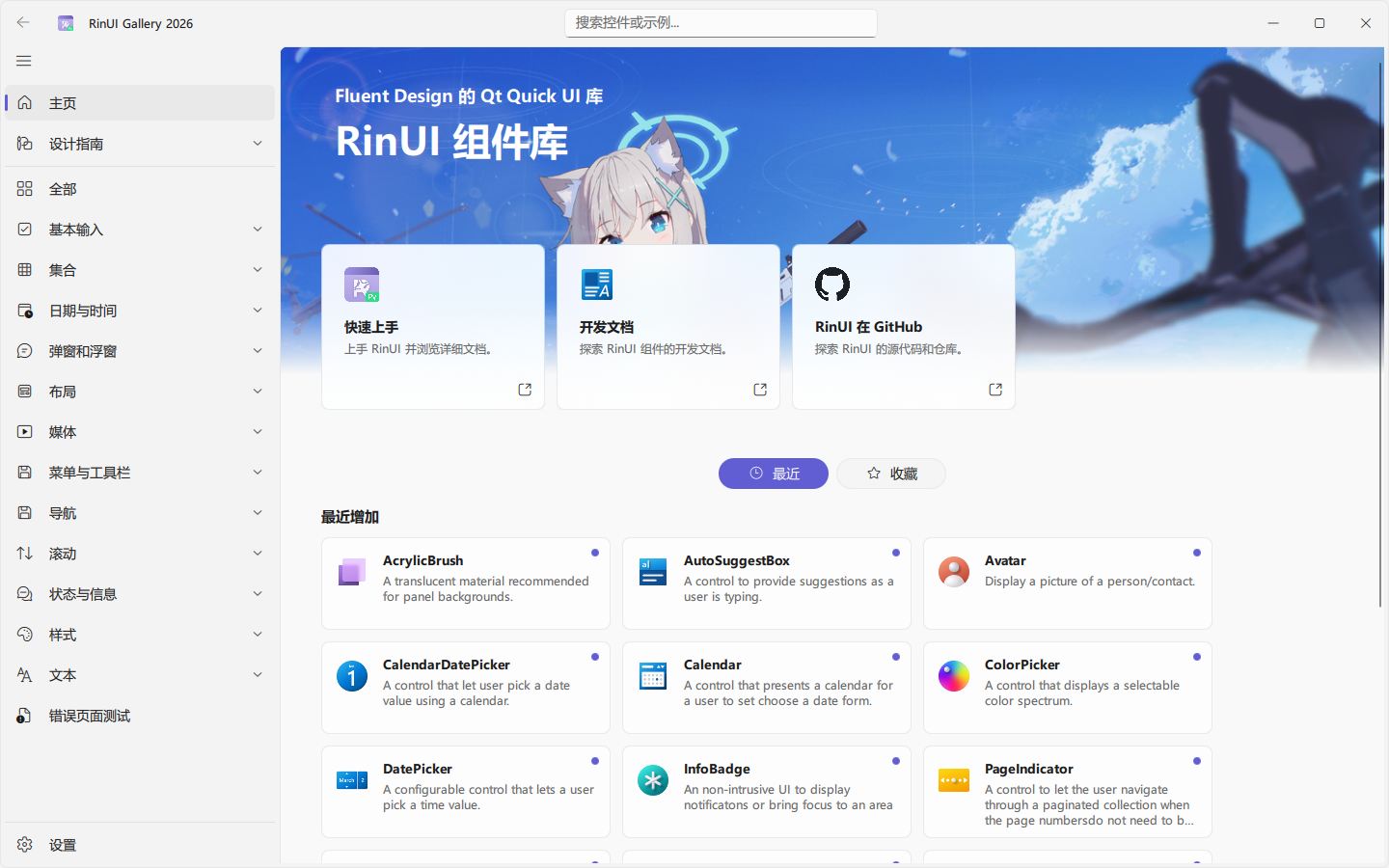
You can download the Gallery example program from the Releases Page of the RinUI repository and run it to experience the basic functionalities of RinUI.
Installation & Testing
Python
You can install RinUI via pip (PyPi):
TIP
Before installation, it is recommended that you build a Python virtual environment.
bash
pip install RinUIThen, you can import the RinUI package into your QML project and Python code to start using it:
qml
import QtQuick
import QtQuick.Controls
import QtQuick.Window
import RinUI  // Just import this library into your existing project

Window {
    width: 640
    height: 480
    visible: true
    title: qsTr("Hello World")

    Row {
        anchors.bottom: parent.bottom
        anchors.horizontalCenter: parent.horizontalCenter
        anchors.margins: 16
        spacing: 4
        Button {
            highlighted: true
            text: qsTr("Click me!")
            onClicked: dialog.open()

            Dialog {
                id: dialog
                modal: true
                title: qsTr("Dialog")
                Text {
                    text: qsTr("This is a dialog.")
                }
                standardButtons: Dialog.Ok | Dialog.Cancel
            }
        }
        Button {
            text: qsTr("Button")
        }
    }
}
python
import sys
from PySide6.QtWidgets import QApplication

import RinUI
from RinUI import RinUIWindow

if __name__ == '__main__':
    print(RinUI.__file__)
    app = QApplication(sys.argv)
    gallery = RinUIWindow("main.qml")
    app.exec()
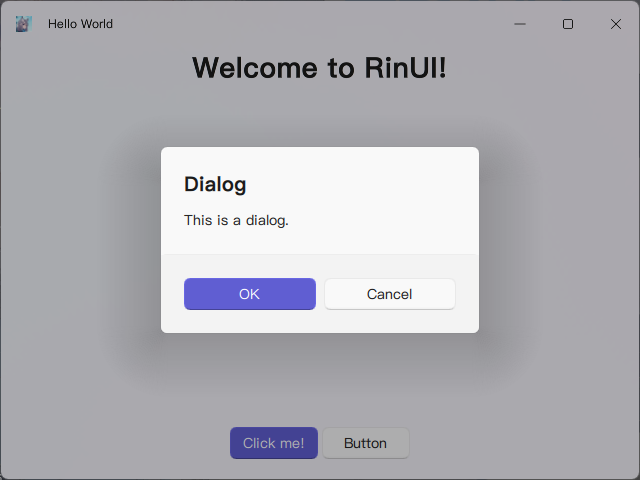
Finally, you should see the following effect:
Further Exploration…
- Learn how to use common controls in QML;
- Install RinUI and import it into your project;
- Try running the RinUI Gallery example program; 4Read the RinUI documentation to learn about its features.