
CalendarDatePicker
CalendarDatePicker displays the selected date or placeholder text as a button. Users open a calendar to choose a date, making it suitable for forms where a visual calendar is helpful.
Basic Usage
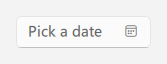
qml
CalendarDatePicker {
    selectedDate: new Date()
}
## Set a Date Range

<div align="center">
  <img src="/assets/images/docs/CalendarDatePicker/example-3.png" alt="Set a Date Range">
</div>

```qml
CalendarDatePicker {
    selectedDate: new Date()
    minimumDate: new Date(2026, 0, 1)
    maximumDate: new Date(2026, 11, 31)
}
## Placeholder and Date Format

<div align="center">
  <img src="/assets/images/docs/CalendarDatePicker/example-4.png" alt="Placeholder and Date Format">
</div>

```qml
CalendarDatePicker {
    placeholderText: qsTr("Select a date")
    textFormat: "MM/dd/yyyy"
}
Handle Date Selection
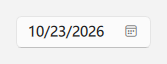
qml
CalendarDatePicker {
    onDateSelected: function(date) {
        console.log(Qt.formatDate(date, "yyyy-MM-dd"))
    }
}
## Properties

- `selectedDate`: Currently selected date; `null` when no date is selected.
- `minimumDate`, `maximumDate`: Selectable date range.
- `placeholderText`: Text shown when no date is selected.
- `textFormat`: Date format shown in the button; defaults to `MM/dd/yyyy`.
- `calendarLocale`: Locale used by the calendar.
- `useISOWeek`: Whether Monday is the first day of the week.
- `iconName`, `iconSize`, `iconColor`, `iconVisible`: Calendar icon name, size, color, and visibility.

## Signals

- `dateSelected(date date)`: Emitted when the user selects a date.